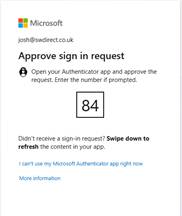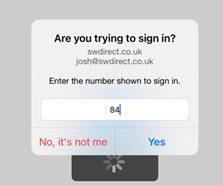
Step 1: Go to Office.com
Open your web browser and go to:
https://www.office.com
👉 Click Sign in and enter your work email address and password.
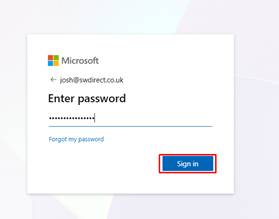
Step 2: Begin Security Setup
After signing in, you will see a prompt saying that more information is required.
👉 Click Next to start the setup process.
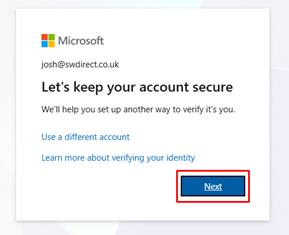
Step 3: Choose Your Authentication Method
You will be asked how you want to verify your identity.
👉 Select “Authenticator app” (recommended)
👉 Click Next
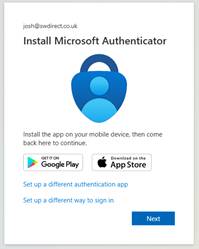
Step 4: Install Microsoft Authenticator App
If you don’t already have the app:
- Go to the App Store (iPhone) or Google Play Store (Android)
- Search for Microsoft Authenticator
- Download and install the app
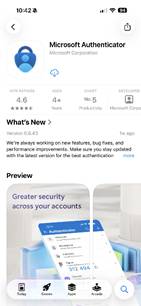
Step 5: Sign In to the App
Open the Microsoft Authenticator app on your phone.
👉 Tap Sign in
👉 Enter your work email address and password
👉 Complete any prompts shown on screen
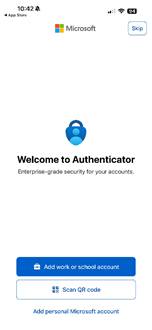

Step 6: Set Up Your Account in the App
Open the Microsoft Authenticator app on your phone.
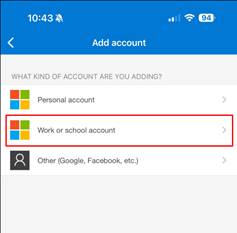
👉 Tap + (Add Account)
👉 Select Work or school account
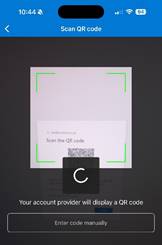
👉 Choose Scan a QR code
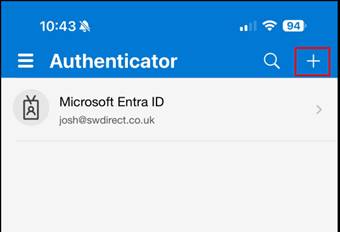
Step 7: Scan the QR Code
Back on your computer:
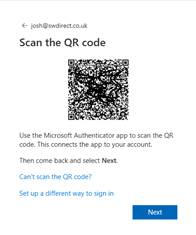
👉 Click Next to display a QR code
👉 Use your phone to scan the QR code shown on your screen
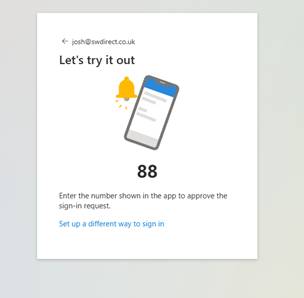
Step 8: Approve the Test Notification
Once scanned:
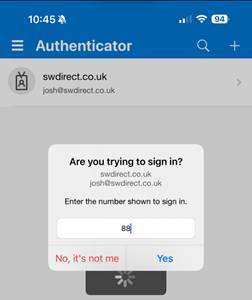
👉 A test notification will be sent to your phone
👉 Open the Authenticator app and Approve the request
Step 9: Complete Setup
Back on your computer:
👉 Click Next after approving the notification
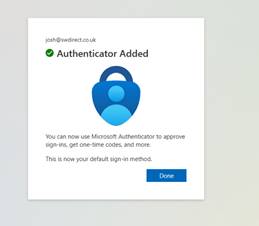
👉 You should see a confirmation that setup is complete
Step 10: Finish
👉 Click Done
You’re all set! 🎉
From now on, when you sign in, you’ll be asked to approve a notification on your phone.